Technology
Steam Deck Game Buying Guide — 6 Checks Before You Buy
Check Steam Deck compatibility, controls, performance expectations, battery use, and refund conditions before choosing your next handheld game.

 Add Gaming.net to your preferred sources on Google
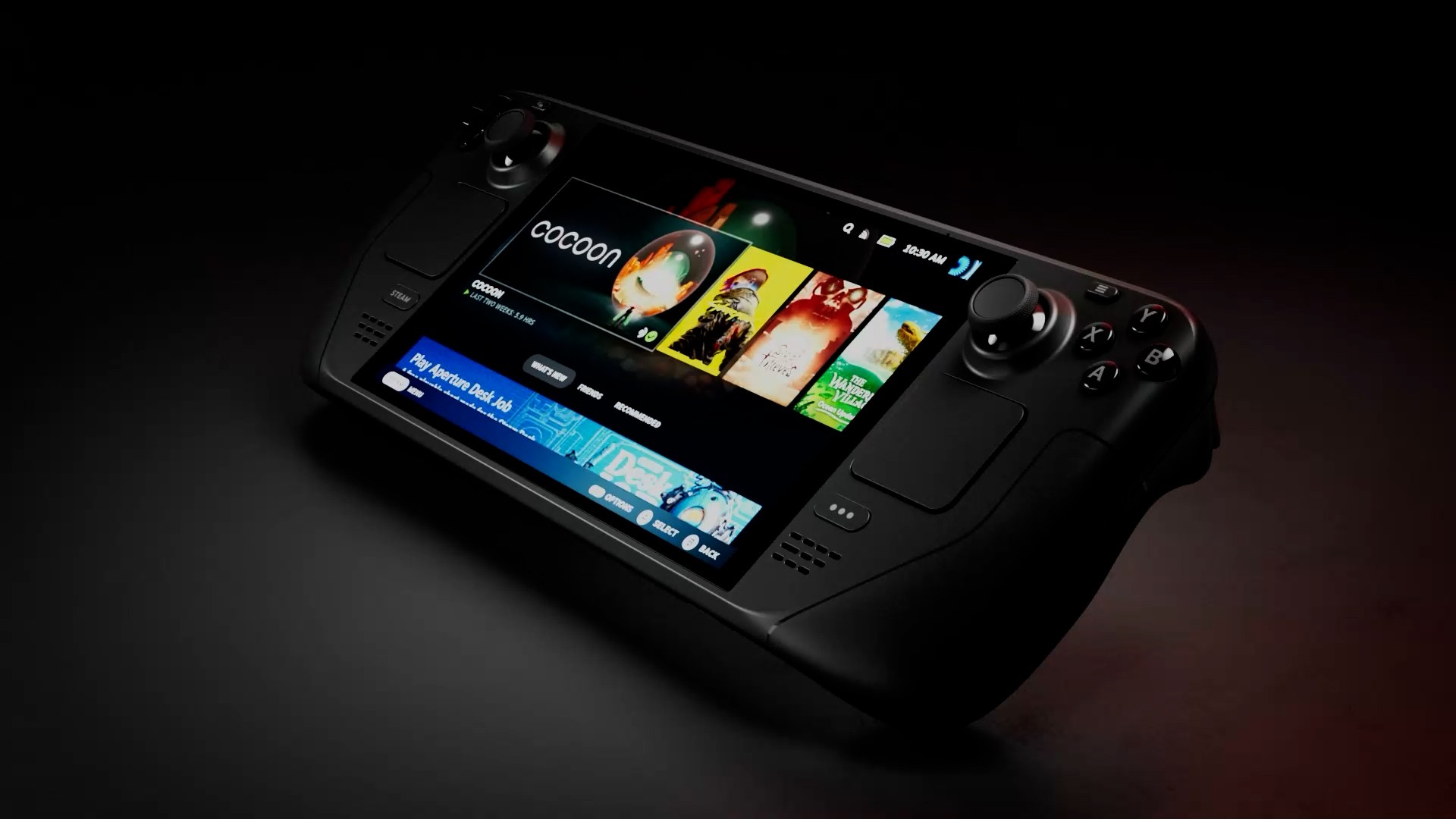
A Steam Deck game can look perfect in a trailer and still ask you to wrestle with a launcher, tiny text, or awkward controls. Before choosing your next portable game, run through these six checks. The aim is to choose an experience that fits how you play, whether that means short sessions on the sofa or a longer trip away from a charger.
6. Start with the Steam Deck compatibility badge
Valve separates games into Verified, Playable, Unsupported, and Unknown. Verified indicates an experience that works out of the box. Playable can involve manual adjustments. Unsupported identifies a current incompatibility, while Unknown means the compatibility review has not been completed. Read the distinction before treating every game in your desktop library as equally suitable for handheld play. Valve explains the categories on its Deck Verified page.
5. Read the details behind a Playable rating
Open the compatibility information in the store or your library. A touchscreen launcher and a controller configuration are different inconveniences, so decide which you are comfortable handling. The badge is a starting point; the explanation underneath it is what helps you make the decision. Filter your library by compatibility when you want to narrow an existing collection. Valve also says tested titles keep the same compatibility ratings across LCD and OLED models, so buying an OLED model does not turn an Unsupported game into a Verified one.
4. Check controls and text before committing to a long session
Use an early session to test the actions you will repeat: opening menus, entering a character name, reading inventory descriptions, and navigating dialogue. Valve’s compatibility checklist covers controller access, text entry, launchers, and readable interface text. As a practical editorial recommendation, try these interactions in handheld mode rather than judging everything on a larger external display. If the game offers text-size options, see whether they make the interface comfortable for you.
3. Separate compatibility from your preferred performance target
The Steamworks documentation specifies a playable default configuration of 30 frames per second at 800p for Deck. That does not establish a promise of 60 frames per second for every Verified title. Pick a target that suits the game, then try a demanding scene as well as the opening area. This guide contains no original benchmarks: recommendations to test responsiveness and adjust available graphics options are a workflow for your own assessment, not measured results for a particular game.
2. Plan around battery use
A compatibility badge should not be your battery-life estimate. Valve’s Steam Deck specifications explain that its battery estimates use particular frame-rate, brightness, and volume settings, and that higher settings can discharge the battery faster. Before travel, test your chosen game at the brightness and performance settings you actually intend to use. Treat the resulting battery indication as a planning aid, not a fixed guarantee. A short, comfortable session is a better starting point than assuming every game will last equally long.
1. Know the refund window before testing a purchase
For games and software purchased through the Steam store, Valve’s general refund policy provides for requests within 14 days of purchase with less than two hours of playtime, subject to the policy’s conditions. Steam does not refund purchases made outside Steam. Check the current rules before buying and watch your playtime while assessing a new game. A demo can help with your initial impression, but Valve’s compatibility documentation says demos generally do not receive their own compatibility review, except in exceptional cases.
Your quick buying checklist
- Check the badge and its explanation.
- Test controls, menus, and text in handheld mode.
- Choose a realistic performance target.
- Assess battery use with your own settings.
- Check the applicable refund conditions before purchase.
Looking for somewhere to start? Check out our Best Multiplayer Games on Steam Deck guide for a few starting points.