Technology
10 Steam Cloud Checks Before Switching Between PC and Steam Deck
Switch between PC and Steam Deck more confidently with ten Steam Cloud checks covering sync status, offline play, conflicts and save compatibility.

 Add Gaming.net to your preferred sources on Google
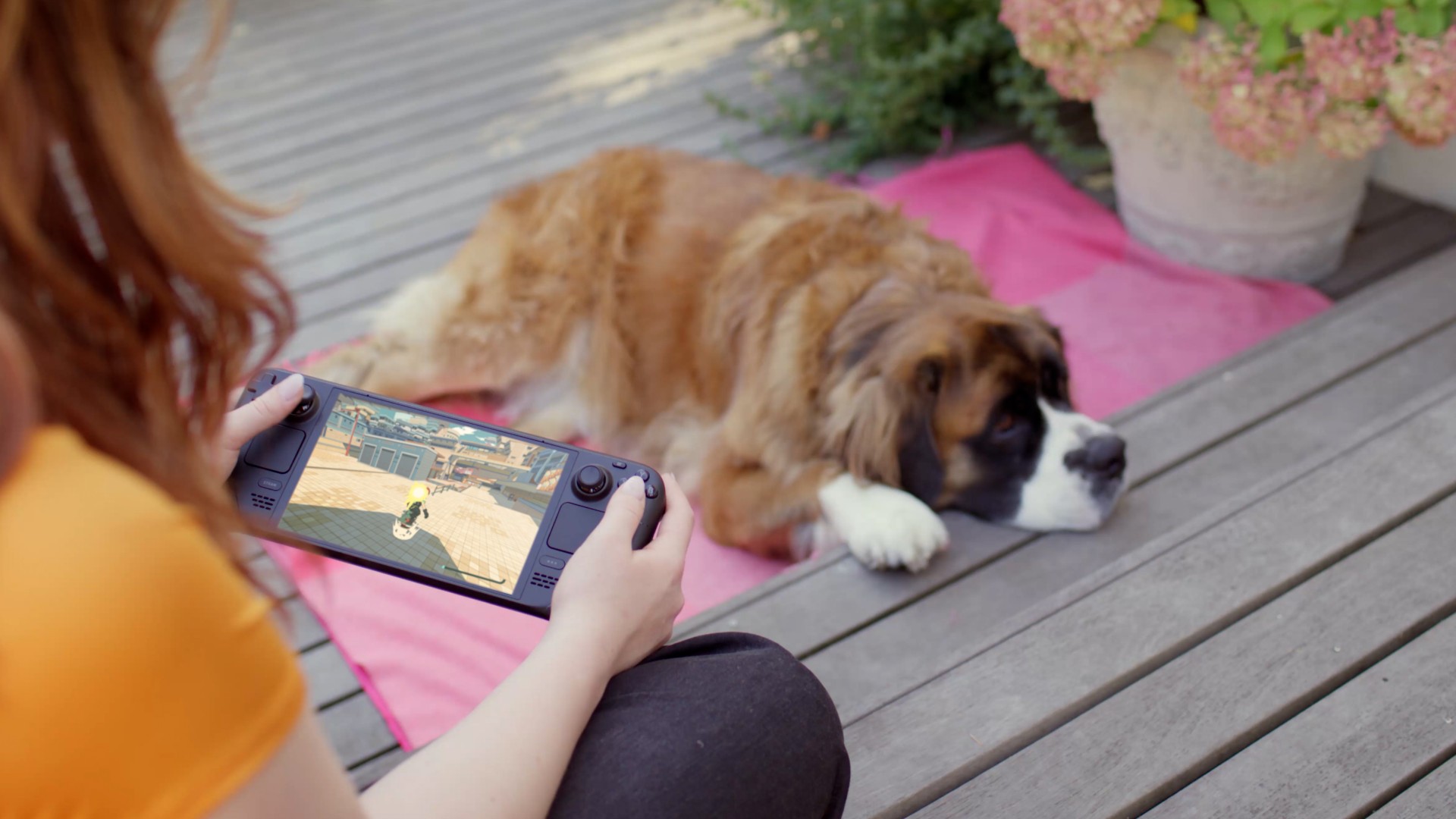
Finishing a boss on PC is satisfying. Opening Steam Deck and finding yourself back before the fight is rather less so. A quick check before switching devices can keep a cloud-sync problem from becoming two different versions of your evening.
Work through these ten checks before launching on the second machine. Already seeing an error? Jump to sync warnings or conflicting saves. If your game is still in development, our Early Access checklist also covers compatibility questions worth settling before a long playthrough.
10. Confirm That the Game Syncs Saved Progress
Look at the game’s Steam features and its official save-transfer guidance. Developers decide how to implement Steam Cloud, so having the game installed on both devices does not guarantee that its campaign saves move between them.
Look specifically for saved progress. Settings, profiles, and saves can behave differently, and a publisher’s own cross-progression service is a separate feature. Settle that distinction before expecting the checkpoint you just reached to appear elsewhere.
9. Check Which Accounts Are Signed In
On a shared PC, confirm that Steam is using the account that owns your progress. Then check the Deck. The installed game can look exactly as you left it even when someone else’s account is active.
If the game also requires a publisher login, check that profile too. You want both devices pointing at the same intended progress, rather than troubleshooting a successful synchronization of the wrong account.
8. Check Steam’s Cloud Settings
Review the Steam Cloud setting and the game’s individual Properties where a per-game option is available. A feature you disabled while troubleshooting last month can explain why this week’s save never made the journey.
Before enabling it again, identify which device contains the progress you want. If Steam then presents a local-versus-cloud choice, use that knowledge to make the decision. Turning the switch on does not tell Steam which of two different playthroughs you meant to keep.
7. Save and Close the Game on the First Device
Use the game’s normal save process, then exit. Putting the Deck to sleep keeps a local session available, but it is not a universal guarantee that the latest progress has been written and uploaded for another machine.
Some games support more advanced cloud behavior. Unless you have confirmed that implementation for this title, a proper exit gives Steam a clear opportunity to synchronize while the device is still online.
6. Wait for Both Devices to Finish Syncing
Check the cloud status after the game closes. Give the first device time to finish uploading before shutting it down or disconnecting it. Then let the receiving machine reconnect and download what it needs.
This matters after a Deck has spent time asleep or offline. An up-to-date PC and an offline handheld are not yet sharing the same information. Launch when the second device is ready, rather than assuming the upload alone finished the whole job.
5. Reconnect After an Offline Session
Progress made offline remains local until it can synchronize. Bring that device online, close the game if necessary, and let Steam finish before carrying on elsewhere.
Try to avoid building separate branches of the same playthrough on two disconnected machines. Steam cannot know which sequence of choices you care about. If that has already happened, keep both sets of files intact while you establish which one you want to continue.
4. Match the Game Version and Mod Setup
A downloaded save still has to be readable by the game on the receiving device. Different builds, experimental branches, or mods can change that. Check the developer’s compatibility guidance before deciding a successful transfer must be the wrong save.
Cross-operating-system compatibility is also game-specific. A Deck may use Proton or a native Linux version. Avoid changing branches or removing mods at random when an existing campaign depends on the setup that created it.
3. Stop at an Unable-to-Sync Warning
If Steam says it cannot synchronize, resolve that before launching the second copy. Continuing can create another local save and make the eventual choice less obvious. Start with the connection and the reported cloud status.
Keep the original files while following Valve’s troubleshooting guidance or the game’s support instructions. Deleting a save folder is a poor first experiment when it may contain the only copy of the progress you wanted to transfer.
2. Compare Conflicting Saves With Your Last Session
Use the conflict information alongside what you remember doing. Which machine did you play on? Was it offline? Did a troubleshooting launch create a newer timestamp without the progress you actually want?
The latest-looking file is evidence, not an automatic winner. If the choice is unclear, preserve independent copies before proceeding. Steam cannot decide which branch of a playthrough matters to you, and choosing quickly can overwrite the one you meant to keep.
1. Back Up a Campaign You Would Hate to Lose
Before a major update, transfer problem, or long-awaited device switch, follow the game’s documented save-location advice and keep an independent copy while it is closed. Give the backup a name that tells you where and when it came from.
Steam Cloud synchronizes files; it does not promise a recoverable history of every version. Valve says Steam Support cannot restore lost saves. Once the right checkpoint loads on the second device, confirm it before making the next session’s progress.
The safest routine is short: save, close the game, let the original device sync, then check the receiving device before launching. If Steam reports a conflict, preserve the progress you care about before making a choice. Another minute at the library screen is preferable to replaying that boss for the wrong reason.