Game Guides
No Man’s Sky on iPhone and iPad: 10 Things to Check Before Playing
Check device compatibility, storage, controls, controllers, multiplayer limitations and other practical details before playing No Man’s Sky on iOS.

 Add Gaming.net to your preferred sources on Google
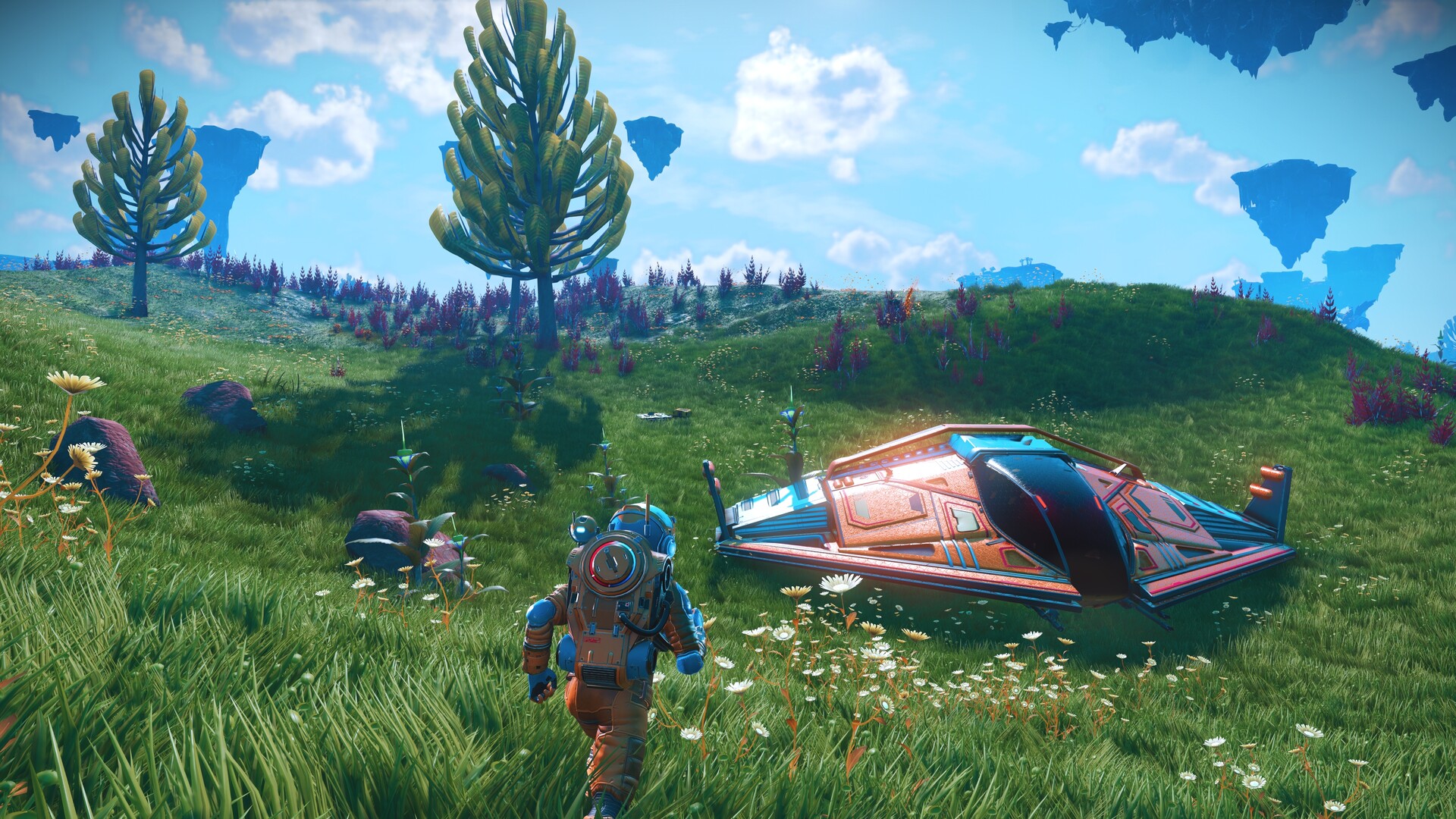
Putting No Man’s Sky on a phone changes the practical questions you ask before starting. Can your device run it? Would you rather use touch controls or a controller? Will the feature you enjoy on another platform be available here? Answering those questions first is a useful way to avoid downloading with the wrong expectations.
This ten-point checklist uses Hello Games’ official iOS announcement as its starting point. Storefront requirements and installed versions can change, so confirm the current listing on your own device. For help once you are exploring, keep our No Man’s Sky beginner guide nearby.
1. Confirm Your Exact Device Is Supported
Hello Games identifies iPhone 11 and third-generation iPad Air as the starting points for supported devices. Check the full model name in your device settings, then compare it with the App Store compatibility section. A similar-looking iPad or an older phone with a familiar name is not enough to establish support.
Treat the store listing as the final check before downloading. Also check its operating-system requirements and any relevant notes. A device meeting the published minimum establishes compatibility; it does not tell you that every model will deliver identical image quality, responsiveness, or battery life.
2. Check Which Features Depend on Your Hardware
The developer specifically limits Planetary Settlements to iPhone 15 Pro and above. That is a separate question from whether a device can run the game at all. If settlements are a major reason you play, examine the current support details before choosing the mobile version.
Make a short list of the features you care about most, then confirm those rather than assuming broad platform support answers every question. This is especially helpful when you are moving from an existing PC or console setup. Compatibility is a starting point for the decision, not a substitute for checking the experience you want.
3. Understand the Multiplayer Limitation
Hello Games says multiplayer is not supported in the iOS release described in its announcement. Plan for a solo experience unless the developer explicitly announces a change. A familiar universe and a familiar game title do not establish that every platform offers the same online features.
If you are downloading to join friends, resolve this before organizing a session or buying accessories. Keep multiplayer separate from other online or account-related features, too. A service connecting an account to a game does not, by itself, prove that shared play is available on that device.
4. Leave More Storage Than the Download Alone Requires
The announcement describes an initial file size below 4GB. Check the current App Store figure rather than treating that launch figure as a permanent promise. Updates, installation requirements, and the rest of your device’s storage use can affect whether the download goes smoothly.
Review free space before starting and leave comfortable room for normal device use. If storage is tight, remove things you can safely restore later instead of deleting files in a hurry. The useful comparison is between the current listing and your actual available space, with enough room left to avoid repeating the exercise at the next update.
5. Try the Touch Controls Before Changing Everything
Hello Games says it rebuilt touch controls for mobile. Give yourself time to learn how the game presents movement, interactions, and inventory tasks before deciding which parts you want to change. A control scheme can feel unfamiliar simply because your hands expect a different device.
Start in a low-pressure situation and test ordinary actions deliberately. Can you read prompts comfortably? Can you reach the controls without obscuring information? Adjust available options one at a time so you can tell which change helped. Avoid following an elaborate settings recipe that assumes the same screen size and grip as yours.
6. Decide Whether a Controller Fits the Way You Will Play
Controller support is confirmed by the developer. That makes a controller worth considering if you expect longer sessions or prefer physical inputs, but check support for the specific controller and your device before purchasing anything.
Think about the complete setup, including where the screen will sit and whether you can reach it comfortably. A controller paired with a stable stand can suit a desk; touch controls may be more convenient for short sessions away from it. Choose around the situation where you will actually play, rather than assuming an accessory automatically improves every use case.
7. Check iPad Keyboard and Mouse Support Separately
The announcement also confirms keyboard and mouse support on iPad. Keep that platform wording in mind: it should not be expanded into a blanket claim about every iOS device or every peripheral.
If you already own a suitable setup, test the important actions before committing to a long session. Check movement, menus, camera control, and any actions you use frequently. Compare the actual supported inputs and available bindings with your habits. Being able to connect an accessory to an operating system is a different question from how well a particular game supports it.
8. Treat Casting as a Display Option, Not a Performance Upgrade
Hello Games lists casting to a television among the supported options. It may help when you want a larger view, but the practical result depends on the setup you use. Check readability, audio behavior, and responsiveness with a short test before settling in.
Casting does not justify assuming a higher rendering quality or a particular frame rate. Judge what you can actually see and feel. If the setup introduces a noticeable delay, decide whether that trade-off suits the way you play. Keep a simpler direct-device setup available if a larger screen turns out to be less comfortable than expected.
9. Check Purchase and Trial Details in Your Region
The developer announced a free-to-try launch. Read the current local App Store listing for the trial’s scope, any unlock purchase, and the price shown to your account. Do not assume that “free to try” means every part of the game is permanently free.
If you already own No Man’s Sky elsewhere, check any stated ownership or account benefits directly instead of assuming a purchase transfers between storefronts. The same applies to save-transfer expectations. Confirm the developer’s current instructions for the exact platforms involved before making a purchase or changing an existing save setup.
10. Test a Comfortable Session Before Planning a Long One
The developer highlights work on battery use and thermals, but that is not a measured runtime guarantee for your device. Try a normal session under the conditions where you expect to play. Notice battery use, screen comfort, available space, and whether your chosen grip remains comfortable.
Make adjustments from that experience rather than chasing a universal “best settings” list. A shorter session with a comfortable screen and dependable inputs can be more useful than a complicated setup you rarely want to use. Recheck after meaningful updates if behavior changes, and keep your expectations tied to the device in your hands.
Confirm the current storefront requirements, choose the controls that fit your situation, and check feature limitations before making plans around them. For more games suited to mobile play, browse our mobile survival-game recommendations.