Game Guides
Modern Warfare 4: 7 PC Settings to Check Before Your First Multiplayer Match
Check seven Modern Warfare 4 PC settings, from Enhanced FOV to depth of field, before taking your setup into Multiplayer.

 Add Gaming.net to your preferred sources on Google
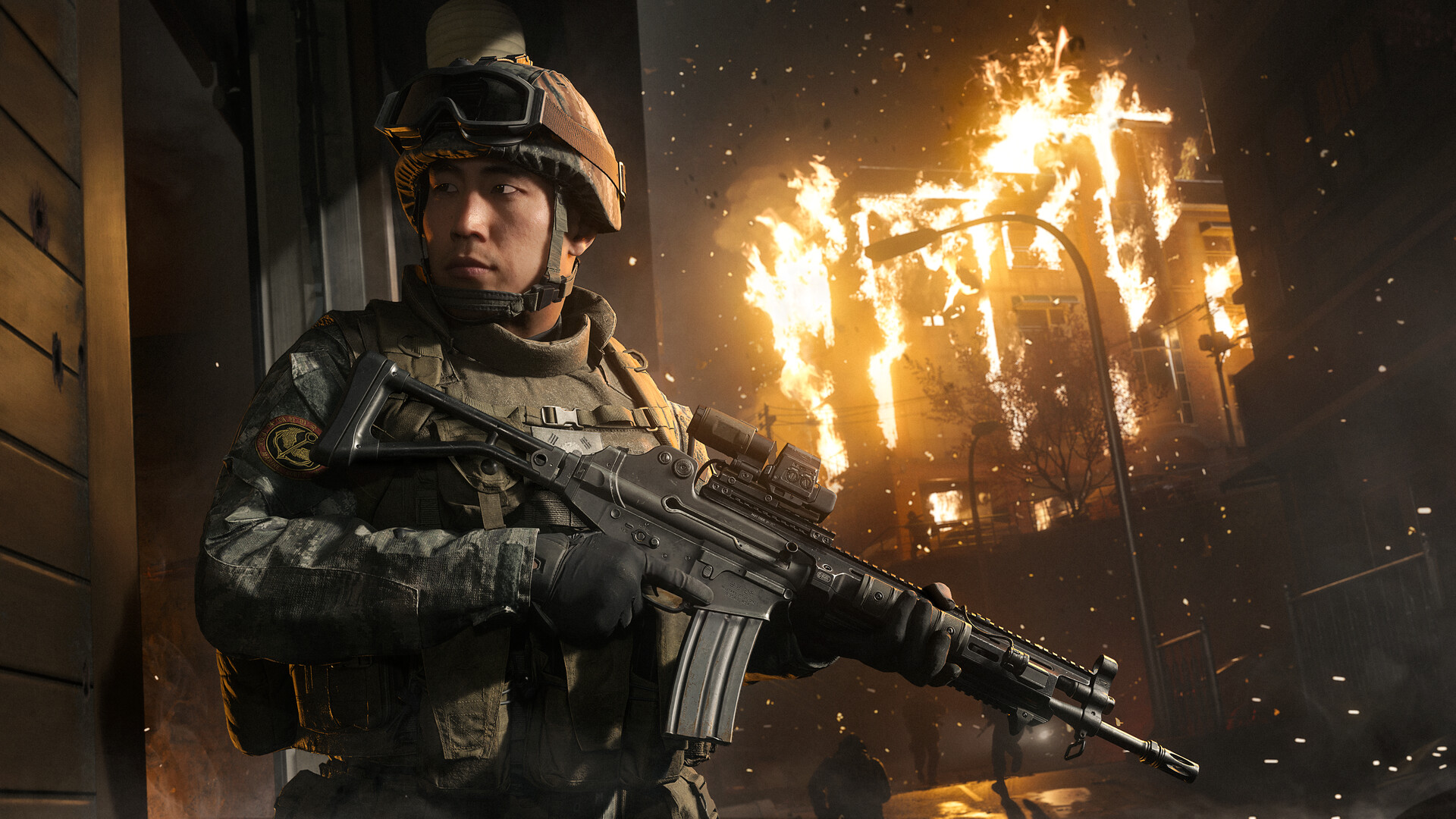
Modern Warfare 4 launched on October 23, 2026, and frankly, its PC options deserve a few extra minutes of your time before you boot up that first multiplayer match. Beenox and Infinity Ward have outlined new visibility controls alongside familiar performance choices, thus giving you a bit more to consider on top of your usual gameplay mechanics. You can build a clearer picture of what suits your system by changing one thing at a time.
This checklist uses the official PC feature breakdown. Start with the game’s hardware-based configuration, then use these seven checks to adjust it. The aim is a comfortable, readable image that holds up during a match; exact values will depend on your display, hardware and preferences.
1. Match the Display Setup to How You Play
Begin with the resolution and display configuration. The developers confirm support for standard and ultrawide displays, so check that the picture fits your screen before changing finer graphics options. A stretched image or an unsuitable resolution makes everything else harder to judge.
Use a familiar scene to establish a baseline. Look at a distant object, an enemy-sized target and the edges of the screen. Keep the resolution steady while testing the next settings so you can tell which change actually improved the result. Save more ambitious experimentation for after the setup feels consistent.
2. Compare Enhanced FOV With Your Usual View
Enhanced FOV is a PC-specific option that expands the view near the edges while preserving the central field of view. That gives you another choice beyond simply increasing the conventional FOV value. Try it with a center view you already find comfortable.
Pay attention to how movement at the sides of the picture feels as well as how much you can see. A wider view is useful only if you can read it comfortably. Spend a little time moving and aiming before deciding whether the feature belongs in your regular setup.
3. Set World Depth of Field Deliberately
World Depth of Field now has its own control, separate from the weapon setting. If you prefer distant scenery and targets to look consistently sharp, compare the available options while looking beyond the gun. Keep your attention on the same background details during the comparison.
Do not change several clarity options at once. It becomes difficult to tell whether a difference came from depth of field, resolution scaling or sharpening. Make the small change, inspect the result, and keep it only if the scene is easier for you to read.
4. Check Weapon Depth of Field Separately
Weapon Depth of Field lets you make a different choice for the gun’s presentation. The split means that liking a sharp environment does not automatically force you into the same preference for the weapon. Compare how the gun looks while aiming and while moving.
A static screenshot tells only part of the story. Watch the transition into your aiming view and consider whether the effect is helpful, distracting or simply a matter of taste. There is room for a personal preference here without presenting one value as a universal competitive requirement.
5. Choose an Upscaling Option Your Hardware Supports
The PC announcement lists DLSS 4.5, FSR Redstone, XeSS 3 and Filmic SMAA T2X among the available image-processing options. Start by checking which choices are actually supported by your hardware. Then compare their picture quality in motion, particularly around fine edges and moving objects.
Where frame generation is available, assess how the game feels as well as the displayed frame rate. Keep your comparisons controlled and avoid treating another player’s settings as a guaranteed result on your system. A mode you enjoy in Campaign may also deserve another look when Multiplayer gets busy.
6. Use the Global Sharpness Slider With Restraint
A new sharpness slider applies across upscalers. That is a useful final adjustment once you have selected the resolution and scaling approach you intend to keep. Raise or lower it gradually while looking at the same collection of objects.
Watch for an image that starts to look excessively outlined or noisy. More visible edge contrast is not automatically more useful detail. Check a moving scene as well as a still one, and revisit sharpening if you later change your upscaling mode. The two decisions are easier to judge together.
7. Test Ray Tracing Before Committing to It
Ray tracing is supported across Campaign, Multiplayer and DMZ. Decide how much its presentation matters to you, then test the setting on your own hardware. A demanding visual option deserves a deliberate comparison rather than being left on solely because it is available.
The built-in benchmark runs a simulated Multiplayer sequence and reports performance information. Use it to compare your baseline with a changed setup, then confirm that the result feels good in actual play. Keep notes on the changes that helped. A short record makes it easier to recover a comfortable setup after your next round of experiments.
Once the PC setup feels settled, our Modern Warfare 4 first-extraction guide covers a different challenge: bringing useful habits into DMZ. For Multiplayer, start with settings you understand and refine them as you learn the maps.