Game Guides
7 Horror Game Settings Worth Checking Before You Play
Check these seven horror game settings for clearer visuals, readable subtitles, comfortable controls and the level of tension you want.

 Add Gaming.net to your preferred sources on Google
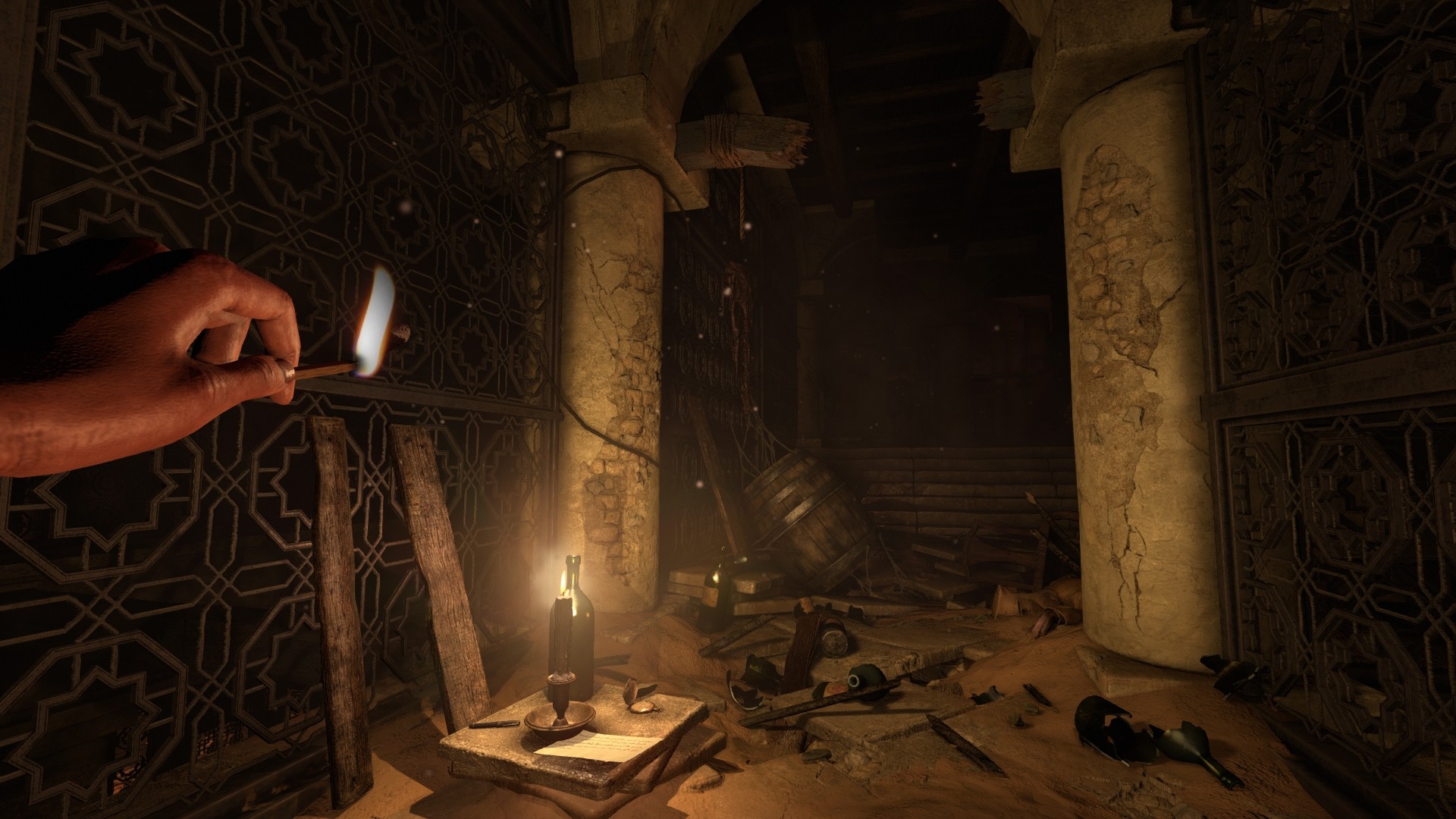
A horror game can be unsettling without making its menus, camera, or dialogue hard to follow. Before stepping into that first dark corridor, spend a few minutes checking how the game presents itself. Small changes can make it easier to understand what is happening and choose the kind of tension you actually enjoy.
The options below vary by game and platform, so use this as a checklist rather than a universal preset. Some games offer only basic controls, while others include dedicated alternatives to the standard experience. If you are still choosing an adventure, our horror games without combat list offers a useful starting point.
1. Calibrate Brightness for Your Display
Start with the game’s own brightness instructions in the room where you normally play. Follow the visibility prompts rather than copying another player’s number, because screens and room lighting differ. If the game and your display support HDR, check those calibration options separately instead of assuming the SDR brightness slider handles everything.
Test a normal scene as well as the calibration image. You should be able to read the details the game intends you to see without making every shadow gray. If a doorway remains completely unreadable, revisit the setup before deciding that the darkness is part of a puzzle. Adjust gradually and keep track of the original values.
2. Compare Camera Sensitivity, Head Bob, and Shake
Move around a safe opening area and turn the camera at a normal pace. Check whether the sensitivity feels controllable when inspecting small objects as well as looking behind you. Separate aiming and camera sliders, when available, can help you tune those actions without forcing them to behave identically.
Look for head-bob and camera-shake options if movement feels uncomfortable or makes the scene difficult to read. Reducing those effects changes the presentation without necessarily changing enemy behavior or difficulty. Make one adjustment at a time, then walk, turn, and interact again. A comfortable camera is more useful than a preset chosen solely because another player recommends it.
3. Review Motion Blur, Film Grain, and Field of View
Visual effects can contribute to atmosphere, but they also change how clearly you see a moving scene. If the game exposes motion blur, film grain, or similar options, compare the picture while walking and turning rather than judging only a still image. Keep the settings you enjoy and reduce effects that obscure details you need.
Field of view deserves the same deliberate approach when it is adjustable. A wider view may show more surroundings, but it also changes perspective and how large distant objects appear. There is no single value that suits every player or screen. Check the edges of the image and the feel of movement before settling on a preference.
4. Make Subtitles and Interface Text Readable
Enable subtitles before the story begins if you want them, then check the options beyond the on-off switch. Text size, background opacity, contrast, and speaker identification can make a large difference from a couch or on a smaller display. Where separate categories exist, consider both spoken dialogue and other character vocalizations.
Sound-effect captions, when provided, serve a different purpose from ordinary dialogue subtitles. They may describe an approaching sound you would otherwise miss. Check what the game actually supports rather than assuming every subtitle option includes environmental information. Test the result during dialogue and gameplay so that readable text does not cover an important part of the scene.
5. Balance Dialogue, Effects, and Output Mode
Choose an output setting that matches your speakers or headphones, then compare the separate audio sliders. If dialogue disappears beneath music or effects, adjust their relative levels instead of repeatedly increasing the master volume. A quieter overall setting can still deliver atmosphere when the information you need remains clear.
If the game offers a reduced dynamic-range or night mode, read its description and try it. Such modes may bring quieter and louder sounds closer together, although the exact implementation varies. Listen during both a calm section and a busier moment. The goal is an audio balance you can follow comfortably, with speech and useful cues remaining understandable.
6. Check Difficulty, Interaction, and Story Options
Read what the difficulty modes actually change. A story-focused option may alter enemy danger, resources, puzzles, or several systems at once. Interaction settings such as hold-to-toggle controls or alternatives to repeated button presses can also make common actions easier to manage when the game provides them.
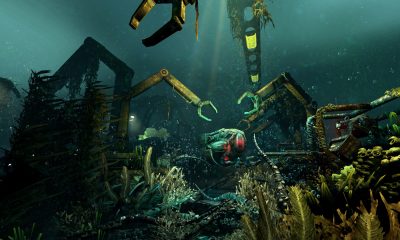
Some horror games go further. SOMA’s Safe Mode changes the threat from its creatures, while Amnesia: Rebirth’s Adventure Mode reduces scares and removes monster attacks. Both still contain unsettling material. Check whether a mode must be selected when beginning a new game before investing several hours in a save.
7. Read Content Options and Flashing-Effect Information
Look through accessibility and content settings for options covering effects or imagery you would prefer to reduce. Depending on the game, these may include flashing effects, disturbing scenes, or specific creatures. Read each description carefully: a visual filter may change a creature’s appearance while leaving its behavior intact.
If an option is absent, do not assume a general graphics preset provides the same function. Consult the game’s official accessibility information for the exact version you are playing. Choose the available controls around your own preferences and needs, then revisit them if the experience changes. You do not have to keep an effect enabled simply because it was part of the default presentation.
Once the picture, controls, text, and sound feel right, you can concentrate on the mystery ahead. For another starting point, browse our best psychological horror games on PC.