Game Guides
Minecraft Switch 2 Upgrade Guide: Eligibility, World Transfers, and Physical Copies
Keep your existing worlds when moving to Minecraft on Switch 2. Here are the digital upgrade rules, physical-copy route, and verified save-migration steps.

 Add Gaming.net to your preferred sources on Google
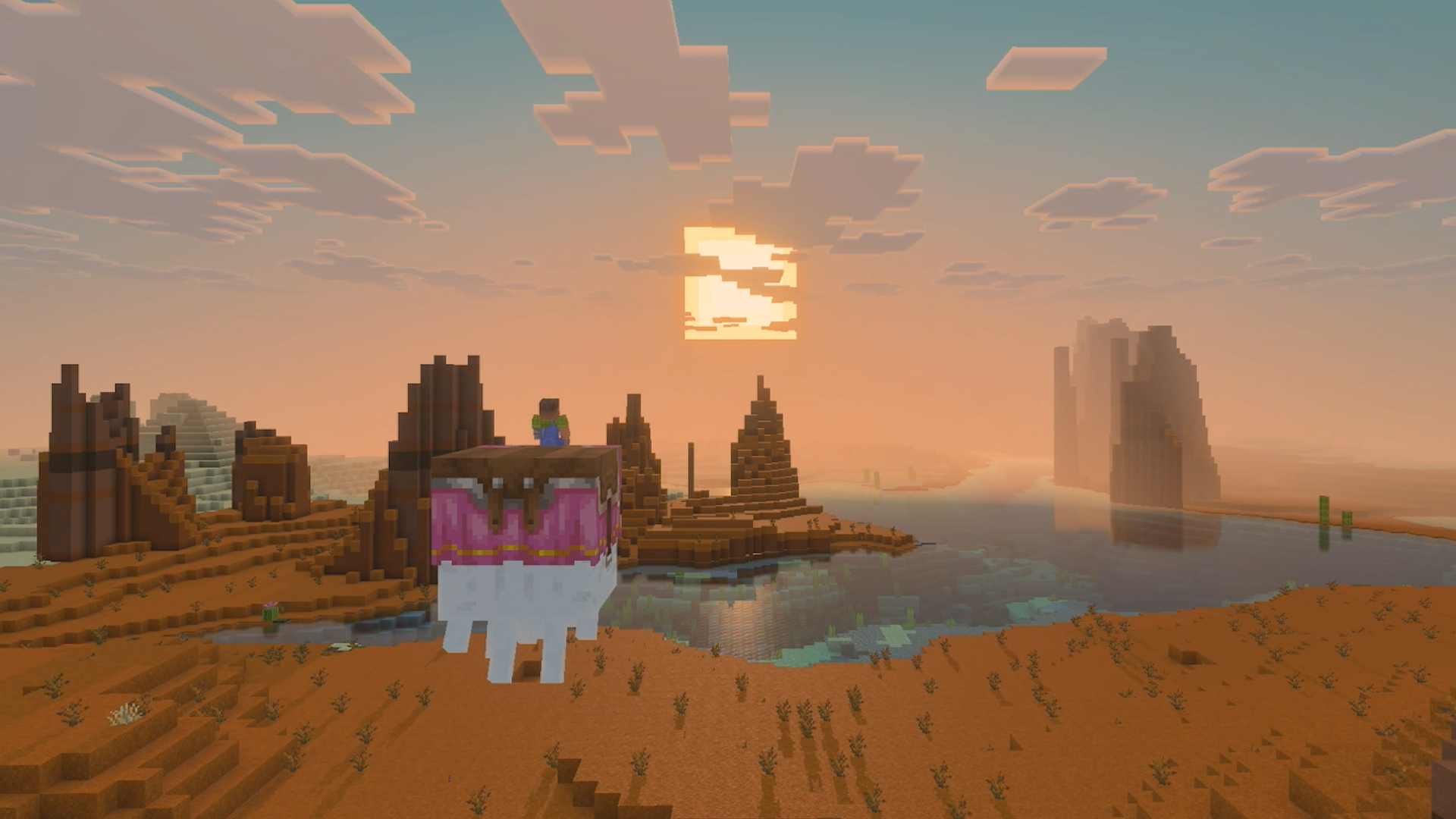
Your Switch world might contain years of building, so moving to Minecraft on Switch 2 is about more than downloading a prettier version. You need the right upgrade offer, the right save data, and the right account. Our original Switch 2 announcement coverage explains the visual changes; this guide gets you back to your existing builds.
Jump to digital eligibility, physical copies, world transfers, or missing worlds and content.
Which Minecraft Switch 2 upgrade can you claim?
For existing Minecraft players · Nintendo Switch to Nintendo Switch 2 · Digital and physical offers differ
If you own Minecraft digitally on Nintendo Switch, the digital Switch 2 Standard Edition is free in most regions during the upgrade promotion. Mojang lists three exceptions: Japan at ¥100, Taiwan at NT$30, and Thailand at ฿25. The offer runs from October 27, 2026, at 9 a.m. Pacific through January 31, 2027, at 9 a.m. Pacific, and is available through Nintendo eShop. See Mojang’s launch announcement for the regional terms.
Open Nintendo eShop, find Minecraft for Nintendo Switch 2, and select the edition you want. For eligible digital owners, Minecraft Support lists US upgrade prices of $0 for Standard, $9.99 for Deluxe, and $19.99 for Ultimate during the promotion. Check the displayed total before confirming; these US prices are not a worldwide price list.
Standard is the sensible starting point if your aim is simply to continue an existing world. All three editions include the Super Mario Mash-Up Pack. Deluxe adds three add-ons, three Character Creator items, and 700 Minecoins. Ultimate includes those extras, adds Decocraft and Weapons + Tools, and brings the totals to five Character Creator items and 1,000 Minecoins. Nintendo’s edition comparison lists the contents. Pay for the extras you actually want, not because a bigger bundle sounds necessary for your old build.
What if you own the Switch game card?
The free Standard offer is for digital owners; do not assume your cartridge unlocks it. For physical owners, launch the original Switch version of Minecraft on your Switch 2 during the promotion and follow its in-game upgrade invitation. Nintendo’s listing identifies this as a discounted digital Ultimate offer. Check the edition and final price shown in your own offer before purchasing, rather than applying the digital-owner prices above.
A physical Switch 2 Standard Edition is also sold separately. That is a different purchase from redeeming an upgrade to a digital edition.
How to bring your existing worlds to Switch 2
There are two jobs here: get the old save data onto your Switch 2, then convert it inside the native Switch 2 game. Downloading the new game does not replace that preparation.
1. Move the original save data first
If your data is still on your old console, follow Nintendo’s System Transfer guide. System Transfer brings across save data and settings; it requires an internet connection and at least one Switch user profile linked to a Nintendo Account. If you already moved your console data, establish which profile holds the Minecraft save before starting the new game.
Still using the older game specifically named Minecraft: Nintendo Switch Edition? Convert those worlds to the Switch Bedrock version first. In that version’s Play menu, choose Sync Old Worlds at the bottom of the world list, then select a world to convert. This older conversion step is documented in Mojang’s legacy transfer instructions; it is not the same menu route as the native Switch 2 conversion below.
2. Launch the native Switch 2 game
Mojang’s Switch 2 migration guide says the first launch performs a one-time migration when it detects the original Switch save data. Let it finish. Worlds belong to individual Nintendo Accounts, so repeat the migration for each profile that has its own worlds.
3. Convert additional worlds individually
- Open Settings in Minecraft for Nintendo Switch 2.
- Select Storage.
- Scroll down and choose Sync Old Worlds.
- After syncing, select Manage and choose the old worlds to convert.
Before deleting any old data, open the worlds you care about and check a familiar build and your inventory. A name appearing in the list is not as reassuring as finding your base where you left it.
What to do if worlds or purchases are missing
For a partially completed migration, use Retry. If the game reports insufficient storage, clear the space it requests before continuing. For another error, resolve the displayed issue and retry. The automatic migration runs only once after completion; use the individual-world route for additional saves.
Missing Marketplace content or a Realm is a separate account check. Minecraft Support’s Switch 2 account guide recommends confirming the Nintendo Account that owns the purchase, the Microsoft account signed into Minecraft, and any active subscription. For Realms, also verify the Nintendo Account’s Nintendo Switch Online membership. If Nintendo shows an active subscription that Minecraft still does not recognize, contact Minecraft Support rather than purchasing it again.
To link a Microsoft account, select Sign in with a Microsoft Account in the game and follow the code-linking instructions on your phone or computer. Use a personal account, not a work or school account, and confirm its identity before completing the link.
Once your world is back
If you are planning a couch session, remember that Vibrant Visuals does not operate in split-screen or with certain Marketplace content. Online multiplayer requires Nintendo Switch Online, and cross-platform play requires a Microsoft account, as explained on Nintendo’s game page. The graphical upgrade is not a reason to buy a larger collection or a second copy unnecessarily.
Returning after a long break? Our Minecraft starter tips cover basic gathering and preparation. For another shared project, browse our co-op games on Nintendo Switch; for more building, try our Switch crafting picks. Those lists cover the original Switch library, not native Switch 2 upgrades. First, though, make sure your own world made the trip.