التكنولوجيا
10 HDR Calibration Mistakes That Hide Detail in Dark Games
Avoid ten common HDR calibration mistakes, from using the wrong display mode to confusing SDR brightness with native HDR settings.

 أضف Gaming.net إلى مصادرك المفضلة على Google
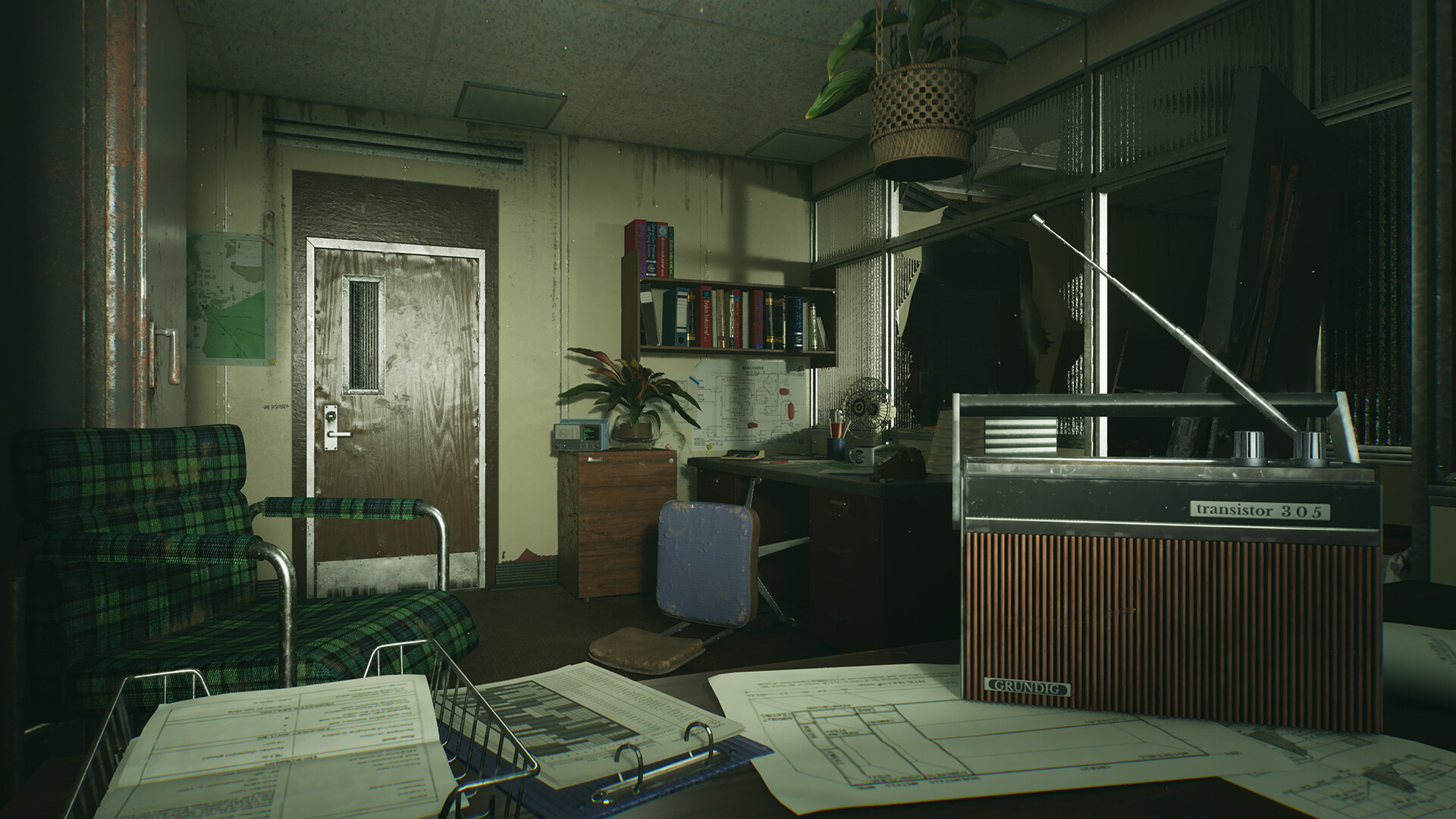
A horror game can hide something in a dark corner without turning the entire room into a black rectangle. When the picture loses detail or looks washed out, raising every brightness control usually makes the cause harder to find.
These ten checks focus on Windows 11 and an HDR-capable display. Start with the calibration patterns if the mode is already working, or SDR brightness if the desktop looks different from the game. Our horror-game settings guide covers the broader comfort adjustments.
10. Calibrating the Screen You Are Not Playing On
With several displays connected, select the intended gaming screen in Windows before inspecting its HDR capabilities. A laptop panel and an external monitor can have different support, and a profile for one will not explain the other’s picture.
Check the cable, port, and display arrangement too. If duplicating screens limits HDR, follow Microsoft’s guidance on extending the desktop. Calibration cannot fix a signal path that is not delivering the mode you wanted.
9. Missing an HDR Setting Along the Way
Confirm HDR is enabled in Windows and that the display recognizes the incoming HDR signal. Your monitor or TV may have input-specific settings that affect what is available, so use the manual for that model.
Then inspect the game’s HDR option, if it has one. Native HDR and an SDR game displayed while Windows HDR is enabled are different situations. Knowing which one you are adjusting stops a desktop setting from becoming your explanation for every game.
8. Copying Brightness Values From Another Monitor
A peak-brightness number that works on someone else’s screen is not a target for yours. Panel capability, picture mode, and tone mapping all affect what the pattern shows.
Use the instructions in the calibration tool or game. Windows HDR Calibration separates minimum luminance, maximum luminance, and maximum full-frame luminance. Treating those as three observations is more useful than forcing them toward one impressive number you saw in a setup guide.
7. Moving Past the Point the Pattern Asks For
Read each calibration screen before touching the slider. In Windows HDR Calibration, follow the instruction about when the specified pattern disappears. Continuing beyond that point because “more HDR” sounds better defeats the measurement you are trying to make.
Take each pattern separately. If you lose track, repeat the step deliberately. You want a result you can reproduce, rather than a set of extreme values chosen while trying to remember what the last screen looked like.
6. Using Lighting You Never Play In
Calibrate in the room lighting you normally use, as Microsoft recommends. A shadow judged beside a bright window can look different during the evening, and reflections can hide detail without any game setting being wrong.
Keep the conditions steady while comparing adjustments. If you regularly play in both bright and dark conditions, expect some compromise. Permanently lifting the image to overcome one afternoon’s reflection can leave the night-time picture looking flat.
5. Letting Display Processing Change the Pattern
Post-processing can change what a calibration pattern looks like. Microsoft notes that it may interfere with calibration, so check the display manufacturer’s recommended HDR game mode and documented picture controls.
Record the starting settings before changing one. Keep panel safeguards and supported operating limits intact; this process does not need service-menu adjustments. A reversible change to a documented control is easier to assess than several unfamiliar settings changed together.
4. Treating SDR Brightness as Native HDR Calibration
Windows lets you adjust how SDR content appears while HDR is enabled. That can help an ordinary desktop window look comfortable alongside HDR material. It does not replace the controls that a native HDR game uses for its picture.
Identify the content you are judging: an SDR browser, HDR video, and native HDR game can take different routes to the display. Fixing the desktop does not establish that the game’s shadow detail is now correct.
3. Assuming Every In-Game Slider Does the Same Job
A game may separate peak brightness, interface brightness, and a reference brightness level. Read those descriptions before moving the first control labeled brightness. Its job may be narrower than making the entire image lighter.
Return to the same scene after an adjustment. Check a dark surface and a bright light together. Recovering shadow detail by washing out the rest of the picture is a tradeoff you should be able to see, rather than an improvement you assume from a higher slider value.
2. Pushing Saturation Until Everything Pops
Strong saturation can make a neon sign look striking while making faces and fog less convincing. The saturation option in Windows HDR Calibration is a control to judge, not a recommendation to select its highest value.
Compare several kinds of scene. If one adjustment flatters a colorful menu but overwhelms ordinary lighting, back it off. The goal is a usable picture across the game, not winning a comparison based on its brightest splash of color.
1. Changing Everything Without a Repeatable Scene
Choose a scene with shadows and highlights, note your starting settings, and change one relevant control at a time. Returning to the same view lets you connect a visible difference with the adjustment that caused it.
Use proper patterns for calibration. This article’s feature image is an SDR illustration, not an HDR test image. If the display still behaves unexpectedly, return to the manufacturer’s and Microsoft’s guidance before adding another layer of changes.
Begin with the correct display and HDR mode, follow the calibration patterns, and compare one repeatable scene. Keep changes small enough to explain. You want to see the detail the game is showing you without taking all the darkness out of the room.